On this page
- Beyond Recording
- Smart Detection for Security
- Security-Focused Smart Detection Rules
- Camera Placement Strategy
- Priority 1: Entry Points
- Priority 2: High-Value Areas
- Priority 3: Common Areas
- Priority 4: Perimeter
- Placement Tips
- Securing the NVR
- Network Isolation
- Access Control
- Firmware Management
- Physical Security
- Motion Zones for Intrusion Detection
- Creating Security Zones
- Sensitivity Tuning
- Integrating with Access Control
- Tailgating Detection
- Visual Verification
- After-Hours Correlation
- Incident Response with Video Evidence
- Timeline Reconstruction
- Evidence Preservation
- Footage Retention Policies
- Monitoring Camera Health
Most UniFi Protect deployments are set up for basic recording: point the cameras, enable recording, check footage when something happens. But Protect is capable of much more. When configured thoughtfully and integrated with network monitoring, it becomes an active security layer that detects threats in real time.
This guide covers how to get the most security value from your UniFi Protect deployment.
Beyond Recording
The shift from passive recording to active security monitoring requires thinking about cameras differently:
- Passive — Record everything, review after incidents
- Active — Detect events in real time, alert on anomalies, correlate with other security data
UniFi Protect’s smart detection features, combined with SentinelNerd’s event correlation, bridge this gap.
Smart Detection for Security
UniFi Protect includes AI-powered smart detection that can identify:
- People — Human presence in defined zones
- Vehicles — Cars, trucks, and other vehicles
- Animals — Pets and wildlife (useful for reducing false motion alerts)
- Packages — Delivery detection
Security-Focused Smart Detection Rules
Configure smart detection with security in mind:
After-hours person detection: Set up detection schedules that match your facility hours. A person detected in a warehouse at 3 AM is very different from one at 3 PM. SentinelNerd can correlate these with access control events — was the door properly badged, or did someone enter without authorization?
Vehicle detection in restricted areas: If you have areas where vehicles shouldn’t be (loading docks after hours, restricted parking zones), configure vehicle detection alerts for those zones during specific time windows.
Loitering detection: Use motion zones with sustained activity thresholds. If smart detection identifies a person in a sensitive area for more than a configured duration, that’s worth investigating.
Camera Placement Strategy
Security camera placement is about coverage, deterrence, and forensic value. Prioritize these locations:
Priority 1: Entry Points
- All exterior doors
- Parking lot entrances/exits
- Loading docks
- Emergency exits
Camera angle should capture faces at eye level. Mount cameras at 7-8 feet height, angled slightly downward.
Priority 2: High-Value Areas
- Server rooms (both inside and the hallway outside)
- Network closets
- Cash handling areas
- Inventory storage
Priority 3: Common Areas
- Hallways and corridors
- Lobbies and reception
- Break rooms
- Stairwells
Priority 4: Perimeter
- Building perimeter
- Fence lines
- Parking lots
- Exterior walkways
Placement Tips
- Avoid backlighting — Don’t point cameras at windows or bright light sources
- Overlap coverage — Ensure no blind spots between camera fields of view
- Consider IR range — Match camera IR capability to the distance you need to cover at night
- Protect the cameras — Mount cameras high enough to prevent tampering but low enough for useful footage
- Use vandal-resistant models for accessible exterior locations
Securing the NVR
Your NVR (Network Video Recorder) is a high-value target. It contains all your footage and has network access to every camera. Harden it:
Network Isolation
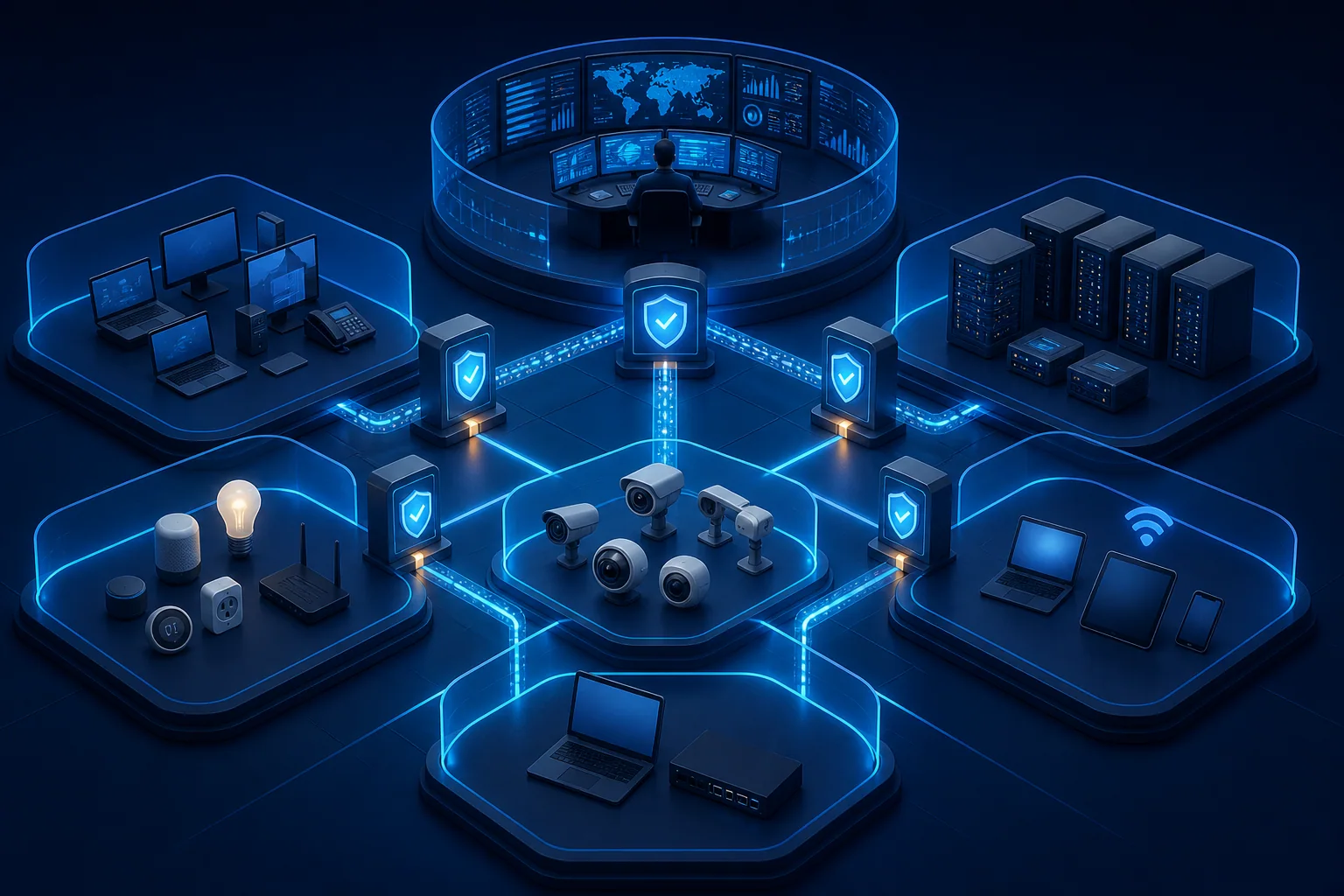
Place cameras on a dedicated VLAN (we recommend VLAN 40 or 50 in our zero trust guide). The NVR needs access to this VLAN, but cameras should not have access to any other network segments.
Firewall rules:
- Allow cameras (VLAN 40) to NVR only (port 7442, 7443, 7444)
- Allow NVR to cameras (for management)
- Allow management VLAN to NVR (for admin access to Protect UI)
- Block cameras from all other networks
- Block cameras from internet access
Access Control
- Unique admin credentials — Don’t reuse the UniFi controller password
- Enable 2FA — Two-factor authentication on all Protect admin accounts
- Audit user access — Review who has access to Protect and remove former employees/contractors
- Role-based access — Use viewer roles for users who only need to view live feeds
Firmware Management
- Keep Protect firmware updated on all cameras and the NVR
- Enable automatic updates or schedule weekly update checks
- Monitor SentinelNerd for firmware vulnerability alerts
Physical Security
- The NVR should be in a locked room (ideally the server room)
- Use a UPS to maintain recording during power outages
- Ensure adequate ventilation — NVRs generate heat under continuous recording load
Motion Zones for Intrusion Detection
UniFi Protect’s motion zones are powerful when used strategically:
Creating Security Zones
Instead of alerting on all motion, create targeted zones:
Perimeter trip wire: Draw a narrow motion zone along your fence line or building perimeter. Any motion in this zone is meaningful — someone is crossing a boundary.
Approach zones: Create zones covering the approaches to entry points. This gives you early warning before someone reaches a door.
Exclusion zones: Mask out areas with expected motion (public sidewalks, trees, roads) to reduce false alerts. Only alert on motion in areas where people shouldn’t be.
Sensitivity Tuning
- High sensitivity for nighttime perimeter zones (catch everything)
- Medium sensitivity for daytime entry point monitoring
- Low sensitivity for indoor areas with environmental motion (HVAC vents, curtains)
Tune sensitivity over a week. Start medium, then adjust based on false positive rates.
Integrating with Access Control
If you’re using UniFi Access alongside Protect, the combination is powerful:
Tailgating Detection
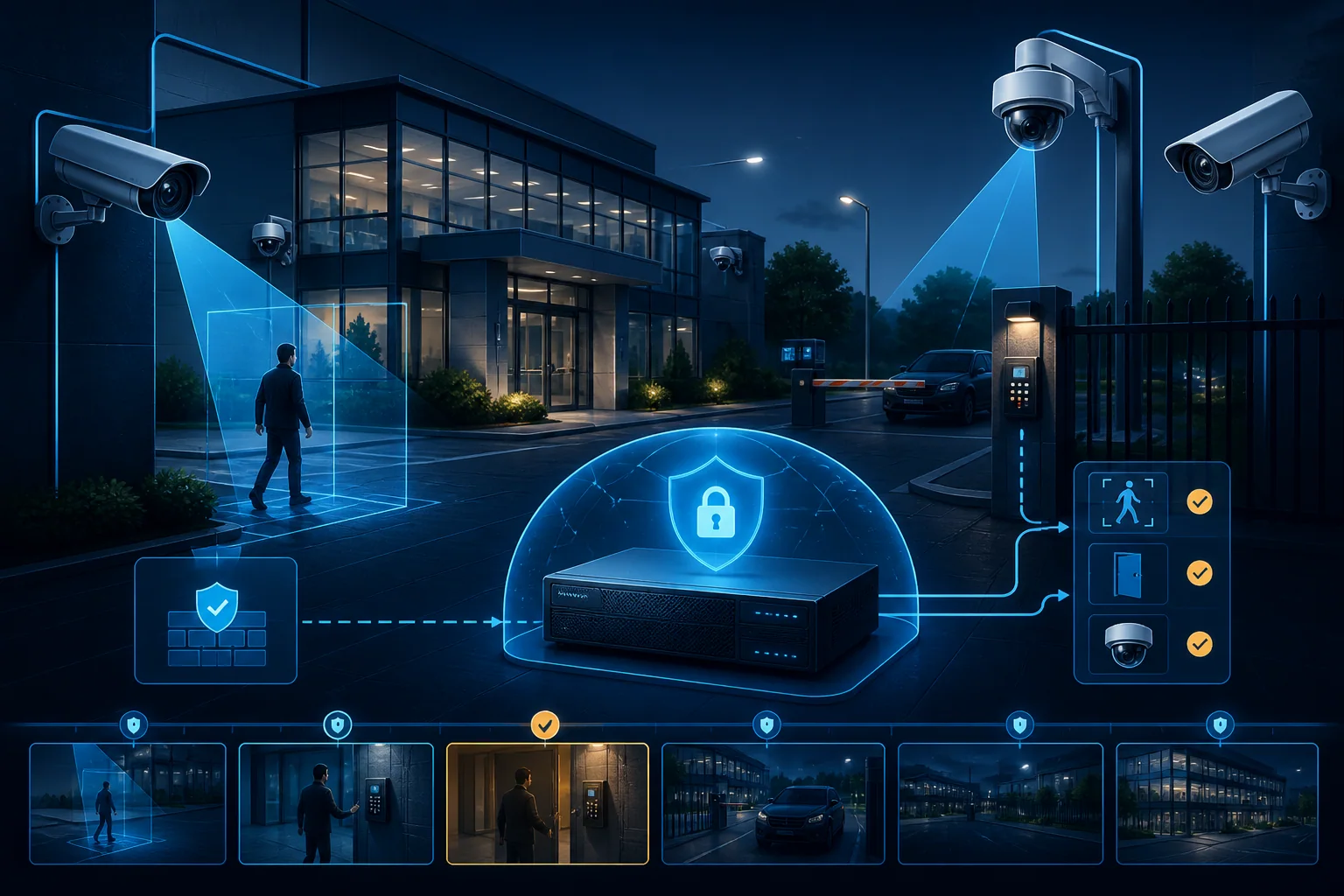
When a door opens, check if a valid badge was presented:
- Badge + door open = authorized entry
- Door open without badge = potential tailgating
SentinelNerd can correlate Access door events with Protect person detection to flag:
- Doors opening without corresponding badge events
- Multiple people entering on a single badge
Visual Verification
When an access alert fires, SentinelNerd links to the Protect camera feed for that location. You can visually verify:
- Is the person who badged in the one who entered?
- Was anyone following behind them?
- Does the person match the credential holder?
After-Hours Correlation
Combine access events with camera footage for after-hours entries:
- Access event: Door unlocked at 11:47 PM
- Protect: Person detected at the door at 11:47 PM
- SentinelNerd: Correlate and present together in a single alert
Incident Response with Video Evidence
When a security incident occurs, Protect footage becomes critical evidence:
Timeline Reconstruction
Use SentinelNerd’s incident timeline to identify the exact timestamps of network events, then pull corresponding video:
- Network alert fires at 14:23 — rogue device detected on VLAN 10
- Pull Protect footage from 14:15-14:30 for all cameras near network ports
- Identify who plugged in the device
- Cross-reference with Access logs to identify the individual
Evidence Preservation
For serious incidents:
- Export footage immediately — Don’t rely on retention policies
- Download at highest quality — Use the Protect UI to export full-resolution clips
- Document chain of custody — Note who accessed the footage and when
- Secure storage — Store exported footage in a location separate from the NVR
Footage Retention Policies
Set retention policies based on your needs:
| Use Case | Recommended Retention |
|---|---|
| General security | 30 days |
| Compliance (PCI, HIPAA) | 90 days |
| High-security areas | 180 days |
| Incident investigation | Until resolution + 1 year |
Calculate storage needs: a G4 Bullet at high quality uses approximately 12-15 GB per day of continuous recording.
Monitoring Camera Health
Cameras are network devices, and they can be compromised or tampered with. Monitor for:
- Camera offline events — A camera going offline unexpectedly could indicate tampering
- Network anomalies — Cameras making unexpected network connections
- Firmware changes — Unexpected firmware modifications
- Configuration changes — Sensitivity, zone, or schedule modifications
SentinelNerd monitors all Protect devices and alerts on:
id: camera-offline-alert
name: UniFi Protect Camera Offline
description: A camera has gone offline unexpectedly
severity: medium
category: device-health
enabled: true

conditions:
  - field: event.type
    operator: equals
    value: device_disconnect
  - field: event.source
    operator: equals
    value: unifi_protect
  - field: device.type
    operator: equals
    value: camera

actions:
  - alert
UniFi Protect is a capable security platform when you move beyond basic recording. Combine smart detection, strategic placement, proper hardening, and integration with SentinelNerd, and you have a physical security monitoring system that rivals enterprise solutions at a fraction of the cost.
Start with one improvement at a time. Harden your NVR this week. Set up motion zones next week. Add access control correlation the week after. Each step makes your security posture meaningfully stronger.